In this article:
Personalized links let you deliver a more relevant and engaging experience to your subscribers by tailoring the links in your emails to each individual contact.
Using the information stored in your list — such as a first name, email address, or other contact-specific data — you can create links that direct each person to a specific page, offer, or piece of content.
This technique is especially useful for personalizing the subscriber experience, passing information to your website, or simplifying actions like pre-filling a form.
What are personalized links used for?
Personalized links can be used to:
- Direct each subscriber to a different page
- Pass information to your website
- Personalize the content displayed on a page
- Pre-fill a form
- Display a personalized offer
- Identify a subscriber when they land on your site
- Display different images in an email
For example, each contact could receive a link leading to a different offer page or containing information specific to their profile.
Before you start
Personalized links can use different pieces of information associated with a subscriber, such as:
- Standard fields (email, first name, last name, etc.)
- Custom fields you have created in your account
Custom fields allow you to add your own data for each contact, for example:
- A customer ID
- A promo code
- A unique link to a specific page
To learn more about how they work, see the article:
Create custom fields >
How personalized links work
A field (custom or standard) can be used in a URL in two ways:
- Replace the Entire URL
The custom field contains the complete URL the subscriber will be redirected to.
Example
Create a custom text field named:
Contact Link
Then add the full URL in that field:
https://example.com/special-offer
In your email, the link will simply contain the field variable:
__CUSTOM_FIELDS[ID]__
(ID refers to the custom field number.)
Each subscriber can then be directed to a different page, based on the value stored in their profile.
To learn how to retrieve a custom field variable, see the article:
Get field variables and codes > - Complete Part of a URL
The custom field can also contain a portion of the URL, which will be appended to a base address.
Example
Base URL in the link:
https://example.com/offer?id=
Custom field value:
12345
Result for the subscriber:
https://example.com/offer?id=12345
Use other fields to personalize the URL
You can also use standard contact variables, such as email address, first name, or last name — directly in a URL.
This can be useful to:
- Identify a subscriber on a web page
- Personalize the content displayed
- Pre-fill a form
Example
In your email, you could insert a link like this:
https://example.com/page?email=__EMAIL__
When the email is sent, the variable is automatically replaced with each subscriber's information.
For example, for a contact whose address is marie@email.com, the link becomes:
https://example.com/page?email=marie@email.com
You can also use other fields, for example:
https://example.com/page?firstname=__FIRSTNAME__
- Use a variable in an image URL
The same principle can be applied to the URL of an image inserted in a text block, in order to display a different image for each subscriber.
For example, if the image URL contains a variable:
https://yoursite.com/images/__CUSTOM_FIELDS[ID]__.jpg
Or simply the variable alone, if the full image URL is stored in the custom field:
__CUSTOM_FIELDS[ID]__
Each subscriber will see a different image, based on the value stored in their custom field.
How to insert a personalized link into a template
Before inserting a personalized link, make sure you have identified the variable for the field you want to use. This variable can come from:
- A standard field (such as email, first name, or last name)
- A custom field you have created in your account
Retrieve a Field Variable
- In your account, click on Settings and Configuration (the icon in the top right corner).
- In the menu, click on Custom Fields.
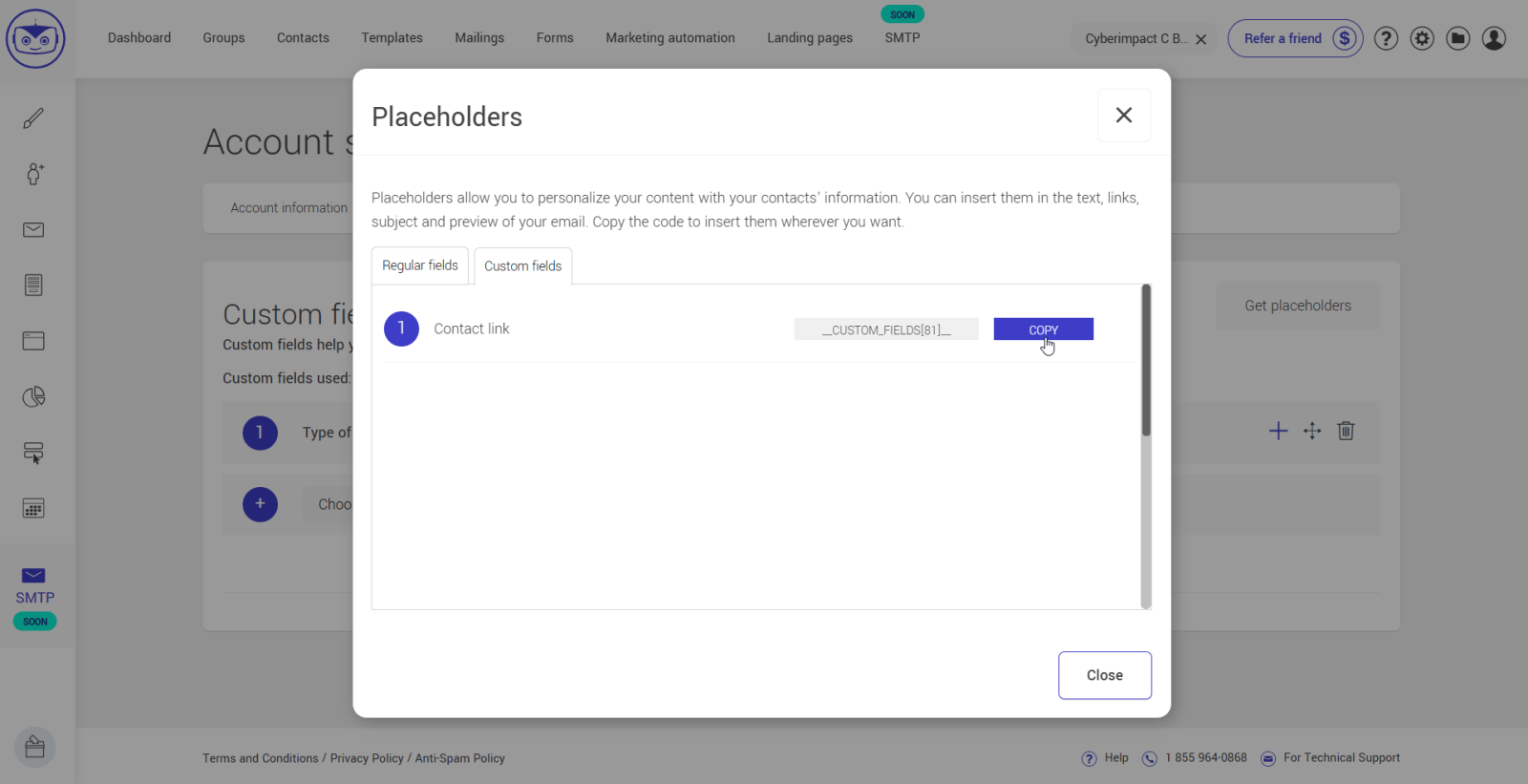
- Click the Get Variables button.
.png)
In the window that opens, copy the variable for the field you want to use.
You can choose a variable from:
- Standard Fields (e.g., __EMAIL__, __FIRSTNAME__)
- Custom Fields
Insert the variable into a link
Open the email template editor you want to work with.
.png)
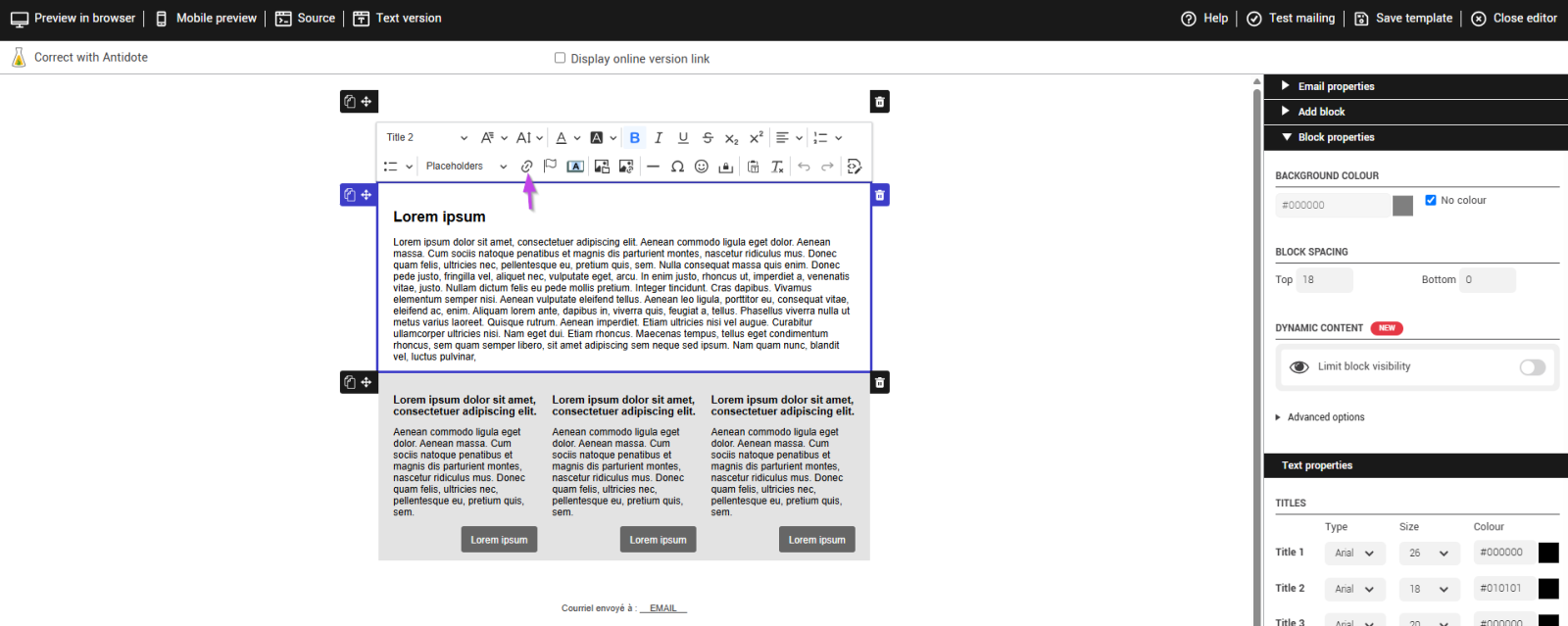
- Select the location where you want to insert a personalized link and click the Insert Link button.
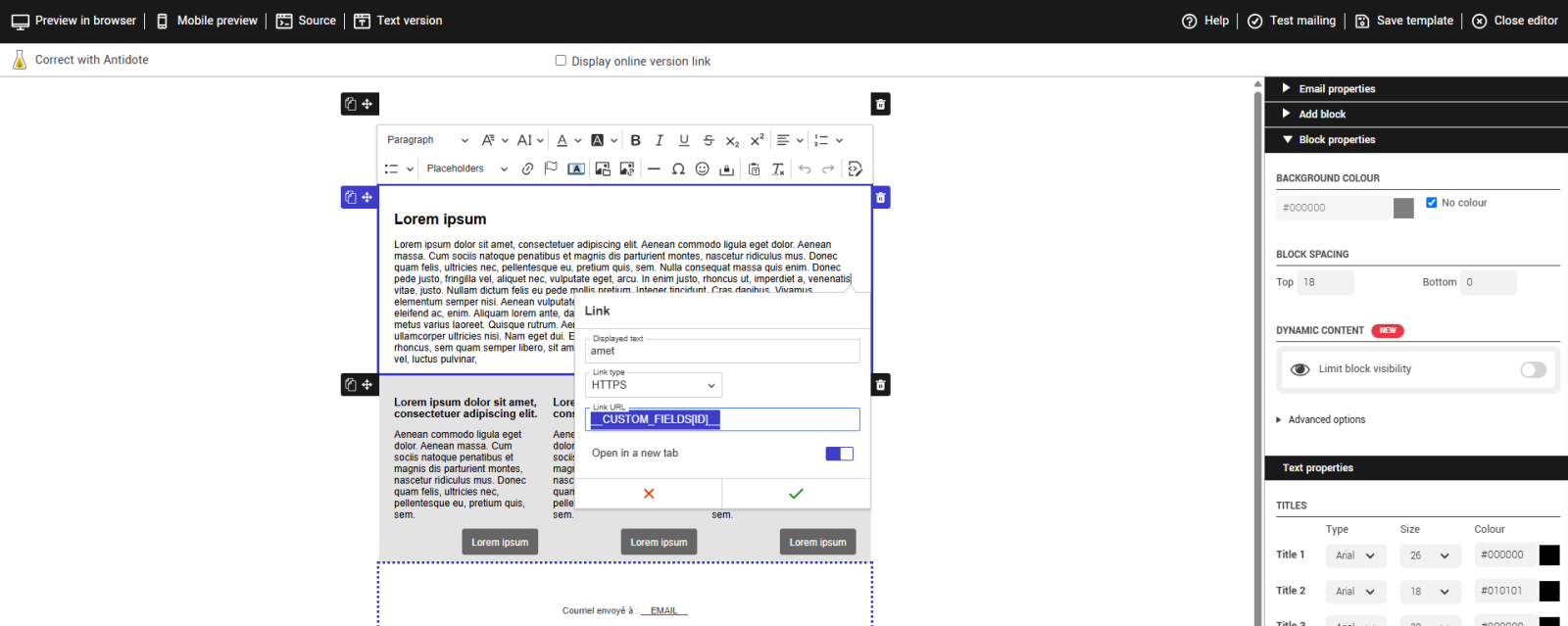
In the link URL field, paste the field variable.
Depending on your needs, the variable can:
- Replace the entire URL: __CUSTOM_FIELDS[ID]__
- Complete part of a URL: https://example.com/offer?id=__CUSTOM_FIELDS[ID]__
Next, click the green checkmark to confirm.
Tips and tricks
Make sure fields contain a value
If a field used in a personalized link is empty for a subscriber, the link may be incomplete or may not work correctly.
Ways to populate your subscribers' fields:
On import: You can import a CSV file containing your contacts and map each column to a field (standard or custom).
Manually: You can edit a subscriber's information directly in their contact profile.
Via a subscription form: If your form includes custom fields, the information entered by the subscriber will be automatically saved to their profile.
Learn more about subscription forms >
Always test your links before sending
Before sending your email to your contacts, it is strongly recommended to test your personalized link to make sure it works correctly and displays the right information.
We recommend sending a real test email to your test group to verify the final result. You can also test as a specific contact from your list.
To learn how to properly test your email, see the article:
Test your template >
Avoid Including Sensitive Information in URLs
Personalized links can pass certain information to your website through URL parameters.
However, URLs can be:
- Visible in the email
- Saved in the browser history
- Shared or copied by users
For this reason, avoid including sensitive information in your URLs, such as:
- Passwords
- Card numbers
- Confidential personal data
If you need to transmit sensitive information, use a unique identifier or a secure token instead, your website can then use it to retrieve the appropriate data.